Printing
This chapter says what you best print the parts with, how you do it safely and which steps you take, from the plugin to the printed part.
2.1 Resin or filament
The overhead line prints best in resin, on a resin printer (MSLA, DLP or SLA). A mast at model scale has profiles of a few tenths of a millimetre, and only resin lays those down sharp and strong.
The overhead line has not been tested with filament (FDM). If you want to try it anyway, switch on Extra sturdy to print under Advanced in the plugin (for H0 and N): the profiles get thicker and the finest details go.
No resin printer?
Then have the parts printed by a 3D print service that delivers detailed resin prints, such as Shapeways, Craftcloud or Sculpteo. You export the file in WAZO3D, upload it to the print service and choose a fine resin there. The parts are delivered to your door.
With filament: a few tips
- Print slowly, with a fine nozzle (0.2 or 0.25 mm) if you have one.
- A low layer height: 0.08 to 0.12 mm.
- Lay a mast flat on the bed, its long side along the bed: then the layers run along the mast and it breaks less easily.
- PLA prints most easily; PETG is a little tougher.
- Print a few at once, so every layer has time to cool.
If you try filament, tell us on the forum how it went, or ask for advice there. What works for you helps the next one.
2.2 Printing safely
Resin
Liquid resin is a chemical that can irritate your skin and your airways, and that you can become allergic to. That does not happen at once but a little at a time, so take it seriously every time.
- Wear nitrile gloves for everything to do with liquid resin or with prints that are not cured yet. Latex does not protect enough.
- Wear safety glasses when filling, emptying and cleaning.
- Print in a well-ventilated room: not your bedroom or the kitchen, and not where you eat.
- Rinse prints in isopropyl alcohol (IPA) or in a cleaner your resin's maker recommends, and then cure them under UV light.
- Let leftover resin and dirty IPA cure in the sun or under UV light first. Then they are solid waste. Never pour them down the sink.
- Keep resin, IPA and prints that are not cured yet out of reach of children and pets.
- If resin gets on your skin, wash it off at once with soap and water. Do not use alcohol on your skin.
- Read your resin's safety data sheet; its maker says there what applies to that brand.
Filament
- Do not leave a printer running unattended. The nozzle and the bed get hot.
- Make sure there is ventilation, above all with ABS and ASA.
Soldering
- Solder on a surface that can take the heat, and always put the iron back in its holder.
- Make sure there is ventilation or an extractor: flux fumes irritate your airways.
- Wash your hands after soldering, certainly with solder that contains lead.
2.3 You want to print a standard mast
This is how you make a mast or portal you set up yourself, from the purchase to the file for your printer. A part TRAX3D made to measure for your layout goes almost the same way; see Made to measure, and the jigs.
The pictures show WAZO3D in Dutch; the names in the text are the English ones.
Buying the plugin
1. Open the plugin's page in TRAX Workshop and click the button to buy it. You arrive in WAZO3D's shop.
2. Click Buy for €….
3. Fill in your address under Your e-mail address. If you have no WAZO3D account yet, fill in Your name too.
4. Click Mail me the code. You get a mail with a six-digit code. It is valid for a few minutes.
5. Type the code under Type the code and click Confirm. That confirms your address and signs you in; if you had no account yet, it has now been made.
6. Tick that you want the plugin at once. Beside it you read that you lose your right to withdraw: a plugin you have already used cannot be sent back.
7. Click Pay €… and pay.
8. After paying, the plugin is in your account, switched on. Click Open the editor.
Making the mast
9. Choose Tools (1) › Plugins (2) and pick the plugin (3, 4 or 5).
 12345
12345- 1 the Tools menu
- 2 Plugins: the plugins installed
- 3 DB catenary mast
- 4 NS catenary portal
- 5 Catenary soldering jig
10. The plugin's box opens: the settings on the left, the model in blue in the view. What you change, you see at once. Start from a ready-made mast under Preset (1) and change it from there.
11. Under Printing, choose the scale you will print at under Level of detail (4), H0 for instance. This makes the mast fit to print at that scale; the sizes themselves you choose only when you export. See below.
12. Leave Print the bending jig with it (5) on if you make the arms from metal wire (it is on by default). Then you print the jig for those arms at the same time. If you already have a jig for this mast, switch it off.
13. Scroll down in the box and click Place, the green tick (1). Then click in the model to set the mast down.
 1
1- 1 Place: puts the part in your model
 A12345
- A the plugin's box
- 1 Preset: a ready-made mast to start from
- 2 Mast: the kind of mast
- 3 Function: line mast, tension mast or custom mast
- 4 Level of detail: choose the scale you export at
- 5 Print the bending jig with it: the jig for the metal-wire arms
An NS portal you make the same way. There you give where the tracks lie under Tracks, across (mm from the middle).
 A123
A123- A the plugin's box
- 1 Portal: the kind of portal
- 2 Tracks, across: where the tracks lie, measured across the portal
- 3 Steady arms
Exporting for the printer
14. Choose File (1) › Export… (2) › STL, for 3D printing (.stl) (3).
 123
123- 1 the File menu
- 2 Export…
- 3 STL, for 3D printing (.stl)
15. In the Export for printing (STL) window, choose the scale under Scale (2): 1:87 for H0, 1:120 for TT, 1:160 for N, 1:220 for Z. You see how big the part will be.
16. Click Export (4). The file is named after your project and the scale, and stands upright, as a slicer expects.
 1234
1234- 1 the Export for printing (STL) window
- 2 Scale
- 3 the size of the print
- 4 Export
If WAZO3D asks whether you want to export all the same because the model is Not watertight, just click Export anyway. On some masts the model touches itself along a few edges; a slicer prints that without any trouble.
17. Open the file in your slicer.
Level of detail and scale
The plugins draw every mast at full size, in real millimetres. Only at the export is it scaled down to the scale you choose. So the Level of detail is not the mast's size. It says what the model is made fit for:
- O / G: nothing changed, every detail as it is.
- H0 / OO and N: everything that would print thinner than 0.35 mm is made thicker, a lattice mast's bars become at least 0.6 mm, and a tapped hole goes under the foot (M2, in N M1.6). In N the lattice is a pierced plate instead of loose bars.
- TT and Z: as H0 and N, but sturdier by themselves: every minimum thickness one and a half times as thick.
Choose the same level of detail as the scale you export at. The screw hole, the holes for the wire and the plate under the foot then get the right size.
Under every foot there is a small plate with TRAX and your name. It is put on by itself and belongs to every print: the parts are for your own layout (see For your own layout).
More settings
Under Advanced there is also Extra sturdy to print, for H0 and N: every minimum thickness gets thicker. That is the setting if you print with filament.
 1
1- 1 Extra sturdy to print: thicker profiles, for filament
Advanced further holds the overhead line itself (the contact wire's height, the system height, the zigzag, the arms) and departures: how the mast is fixed (Fixed to the layout by: a thread, a printed pin or nothing), the thread, Cantilevers of metal or printed, the wire's thickness and the room in the holes. Leave them as they are unless you know why you want something else.
 123
123- 1 Advanced: the overhead line itself and departures
- 2 Fixed to the layout by: a thread, a printed pin or nothing
- 3 Cantilevers: metal or printed arms
Under Measures you see for every wire how long to cut and bend it.
 12
12- 1 Measures: the length to bend for every wire
- 2 for every wire the length to cut and bend
2.4 Made to measure, and the jigs
You want to print a part made to measure for your layout
Where your layout's page on TRAX3D, the Made-to-measure overhead line block.
1. Save your layout with its overhead line in TRAX3D and open your layout's page.
2. The Made-to-measure overhead line block lists every part TRAX3D made to measure for your layout, with how many you need.
3. Click Make them in WAZO3D beside a part. WAZO3D opens in a new tab.
4. Sign in if you are asked. If you do not have the plugin yet, you first come to the page to buy it; if it is not installed yet, WAZO3D asks you once.
5. The plugin's box opens with all of TRAX3D's settings filled in and the model in view. The level of detail is already set to your layout's scale.
 A1
A1- A the box, with TRAX3D's values filled in
- 1 Level of detail: already set to your layout's scale
6. Check it and click Place, the green tick at the foot of the box (1).
 1
1- 1 Place: puts the part in your model
7. Export as for a standard mast: File › Export… › STL, for 3D printing (.stl), your layout's scale, Export.
The bending jig beside a mast
If you make a mast's arms from metal wire, the plugin prints a bending jig beside it. On that jig every wire has its own groove, at exactly its own size, with the wire's name beside it. Along the edge are the wire's thickness and the TRAX logo. An NS portal has one jig for all its arms: the longest, with a notch where you cut each shorter one.
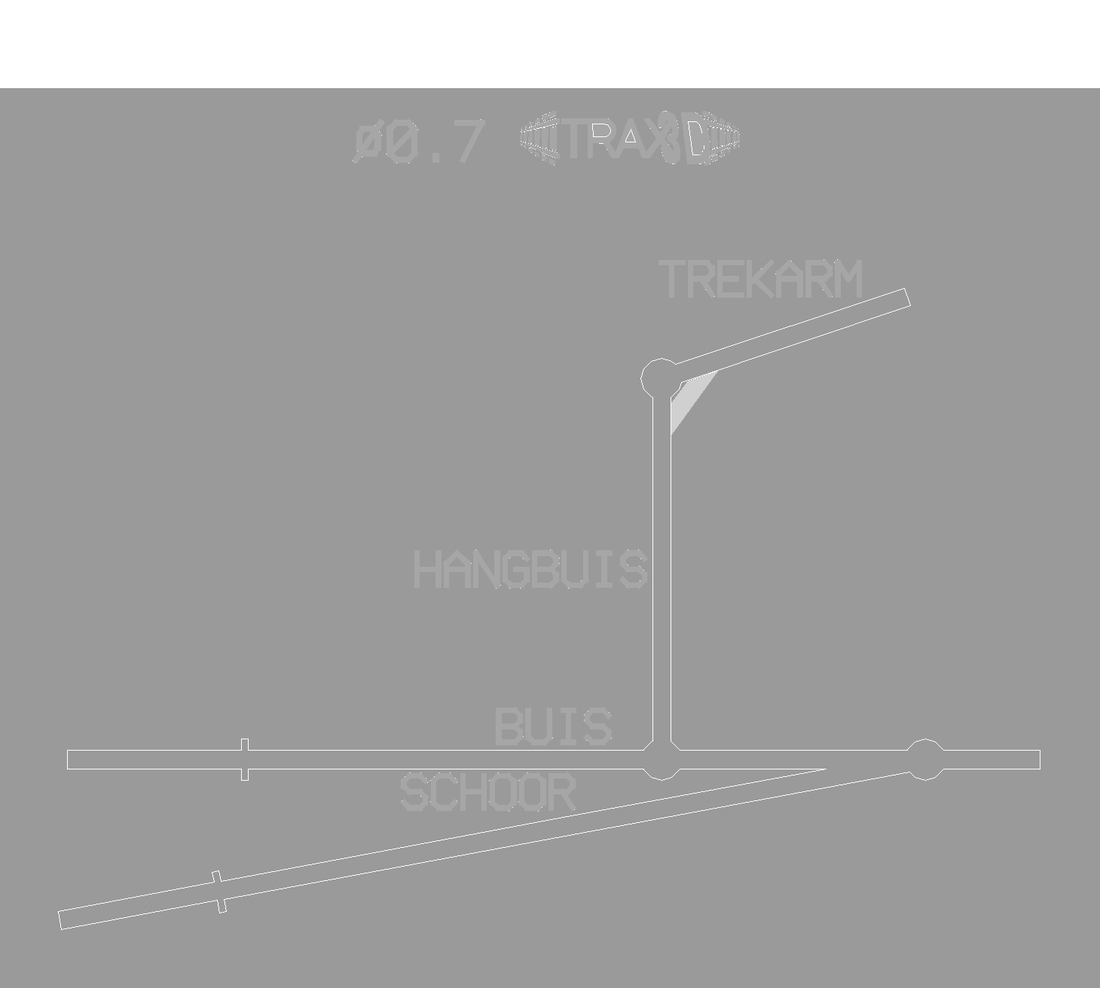
On the mast the wire goes 5 to 7 mm into the hollow insulators. How to bend and solder is under Bending and soldering the wires.
The soldering jig
With the Catenary soldering jig plugin you make a jig for a whole span of overhead line: the contact wire, the messenger above it and the droppers between them. You lay the wires in the grooves, solder them over the small holes and lift the lot out. There are settings for H0, TT, N and Z, and for cross spans.
Choose the Scale (2) first, then a span or a cross span under A jig for (3), and set the Span (mast to mast) (4) if needed. Every size you leave at 0 gets the usual value for that scale. Place (6) puts the jig in your model.
 A123456
- A the plugin's box
- 1 Preset: a ready-made span, here H0 · DB Re 160/200
- 2 Scale
- 3 A jig for: a span or a cross span
- 4 Span (mast to mast): the length of the span
- 5 Wires: the wires' thicknesses
- 6 Place: puts the part in your model
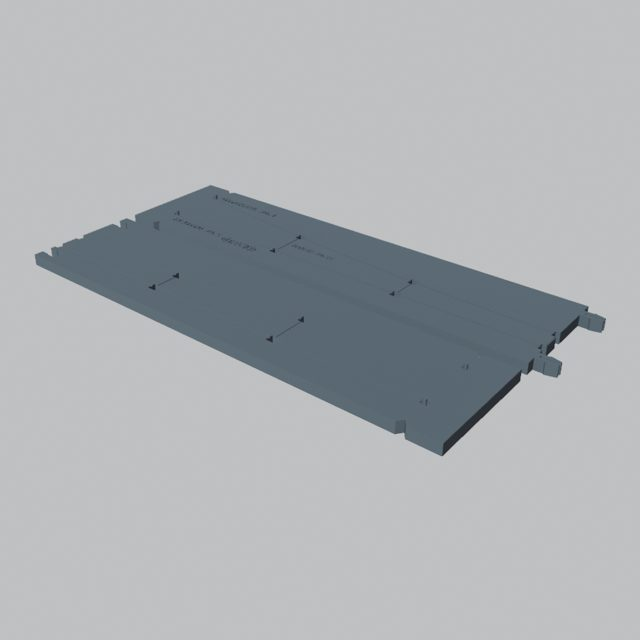
At both ends the jig makes a small eye round a pin. Under Measures you find how long to cut each dropper. If the jig does not fit your build plate in one go, it prints in pieces that click together.
By default in H0: a span of 300 mm, contact wire 0.5 mm, messenger 0.4 mm and droppers 0.25 mm.